


I. How to download Zoom and register an account on your phone
1. Quick guide
- Download the Zoom app using the link below:
- Open Zoom and select Sign up
- Scroll to select your date of birth > Press Confirm
- Enter your email, last name, and first name > Press Sign up
- Open your email and click the message Zoom just sent > A webpage appears; select Activate your account > Enter the new password 2 times > Check the option I’m not a robot > Press Continue
- Reopen Zoom and sign in with the email and password you just created
2. Detailed guide
Step 1: Download the Zoom app using the link below:
Step 2: Open Zoom app, select Sign up
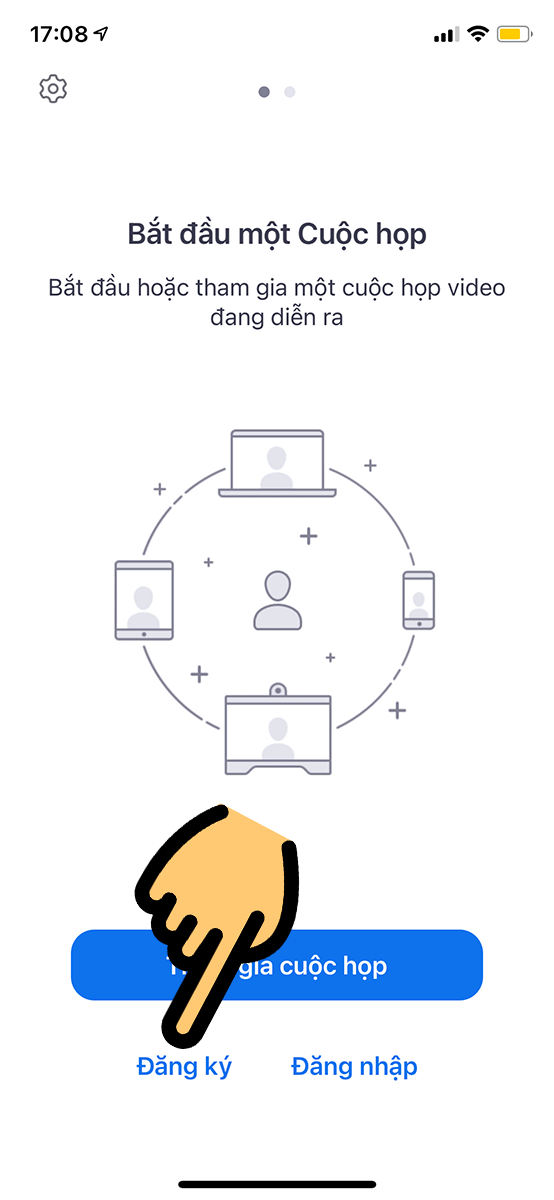
Select Register
Step 3: Scroll to select your date of birth > Press Confirm
You need to make sure you choose a birth year so that at least 16 years old when registering a Zoom account to avoid errors when registering an account.
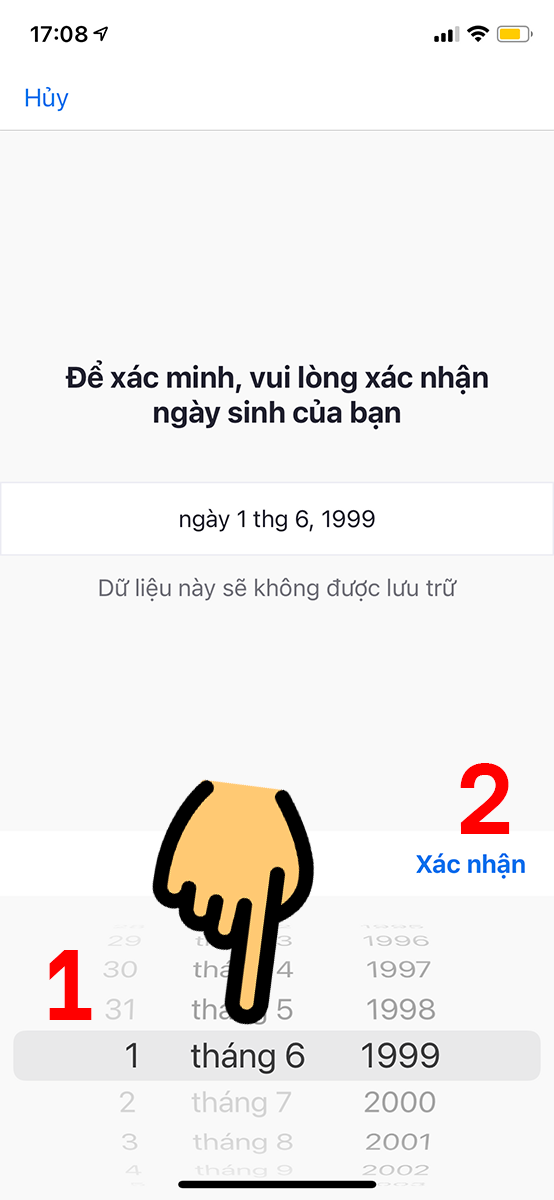
Scroll to select your date of birth
Step 4: Enter your email, surname, and given name > Press Sign up
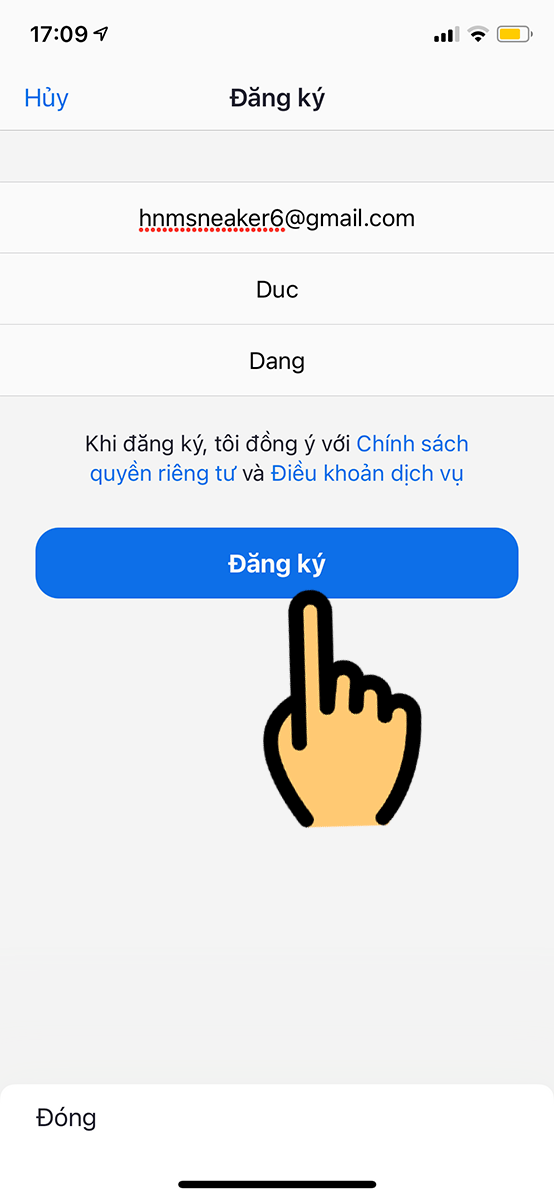
Enter your email, last name, and first name
Step 5: Open your email and click the message Zoom just sent > A webpage appears; select Activate your account > Enter the new password 2 times > Check the option I’m not a robot > Press Continue
Pay attention when setting a password, ensure:
- Contains at least 8 characters
- Contains at least 1 letter
- Contains at least 1 number
- Use both uppercase and lowercase letters
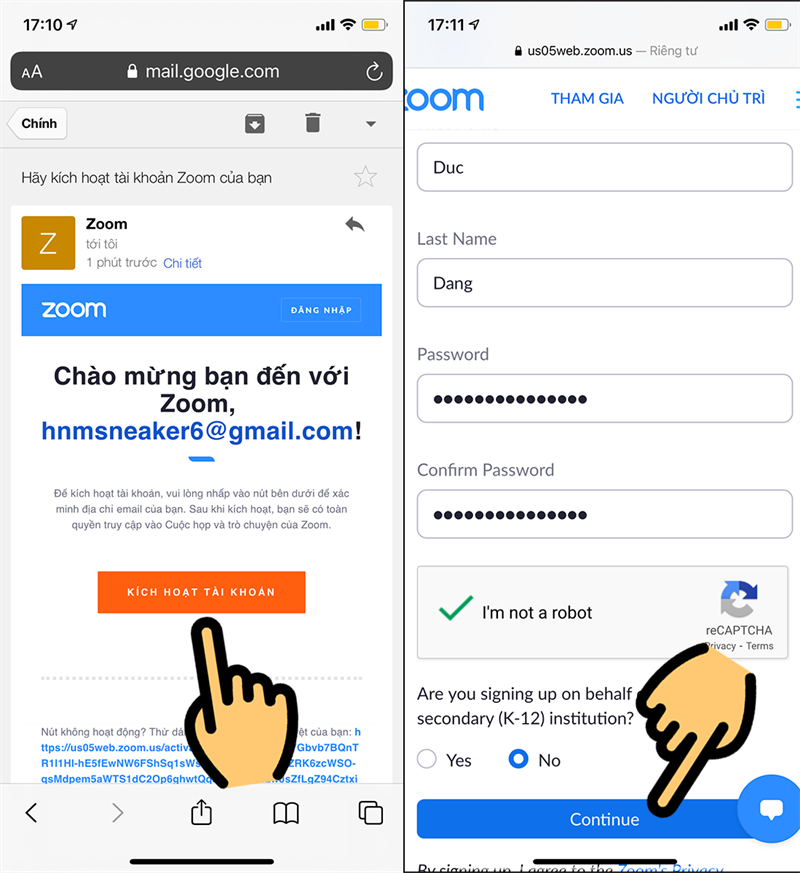
Activate your account
Step 6: Reopen the Zoom app and sign in with the email address and password you just created
Note: Users can quickly create accounts through SSO accounts, Google or Facebook already exists.
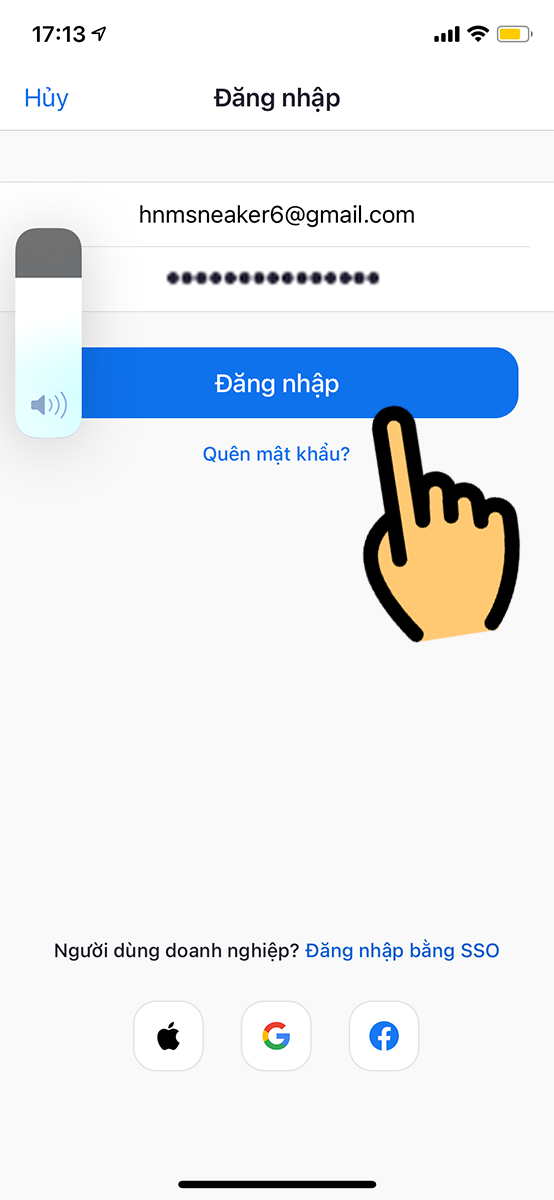
Log in with your email and password
II. How to join a Zoom classroom
1. Quick guide
- After successfully signing in, to enter the Zoom classroom, select Join
- Enter Meeting ID and set your name, then press Join (Join) to enter the room
- You enter password of the room you want to join > Click Continue will open the classroom interface.
- Choose Join with video (with camera on) or Join without video (camera off) lets you enter the Zoom room.
2. Detailed guide
Step 1: After signing in successfully, to enter the Zoom classroom, select Join
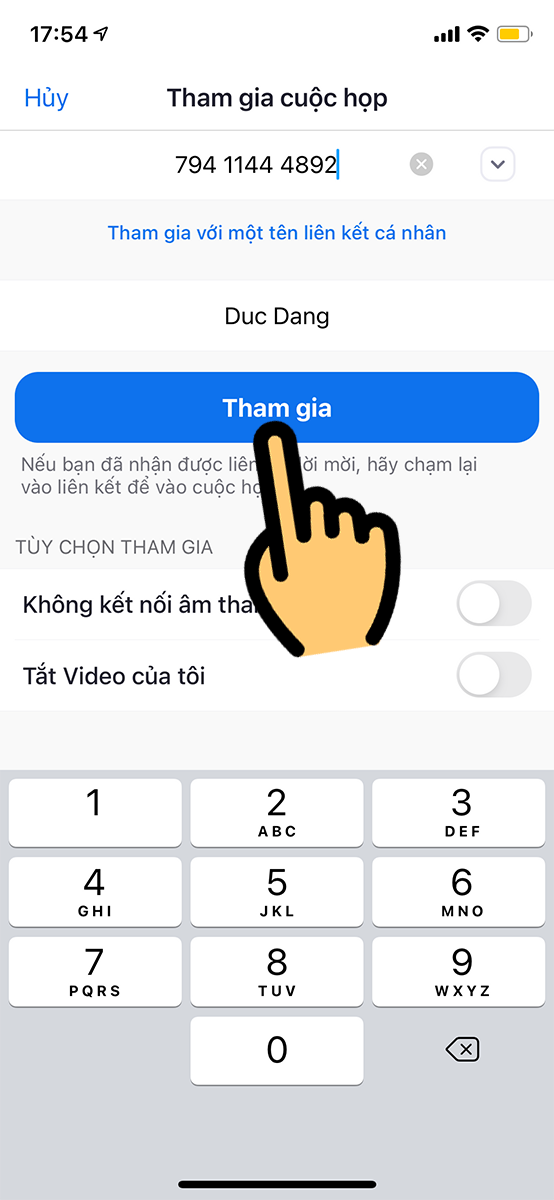
Select Join
Step 2: Enter Meeting ID and set your name, then press Join (Join) to enter the room
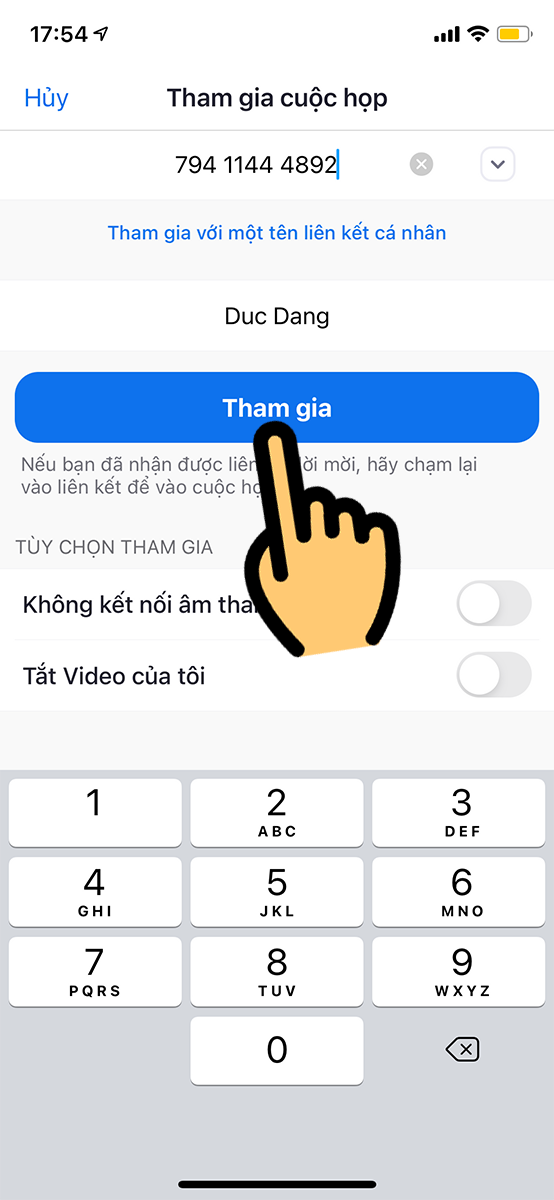
Enter the Meeting ID and set your name
Step 3: You enter password of the room you want to join > Click Continue will open the classroom interface.
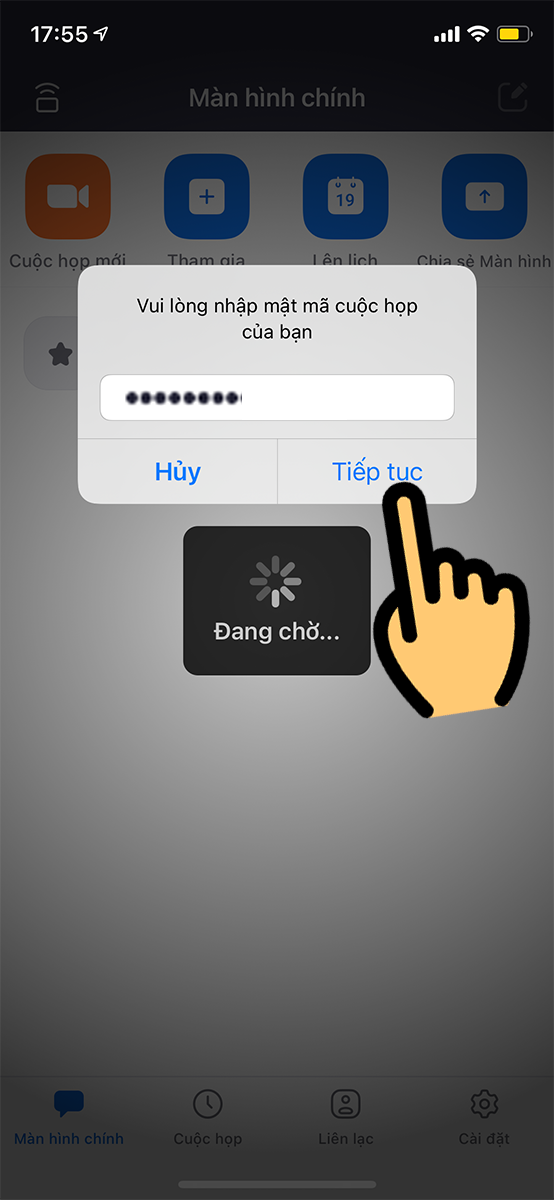
Enter the password for the room you want to join
Step 4: Choose Join with video (with camera on) or Join without video (camera off) lets you enter the Zoom room.

Select Join with Video
Step 5: After entering the classroom, you can also see key features such as:
- Join Audio: Turn audio on/off in Zoom.
- Stop Video: Turn off the webcam and replace it with a logo image, or change your Zoom learning video background.
- Participant: View the classroom participants.
- Share content: Share screen.
- More: You can open a chat with people in the room or adjust settings.
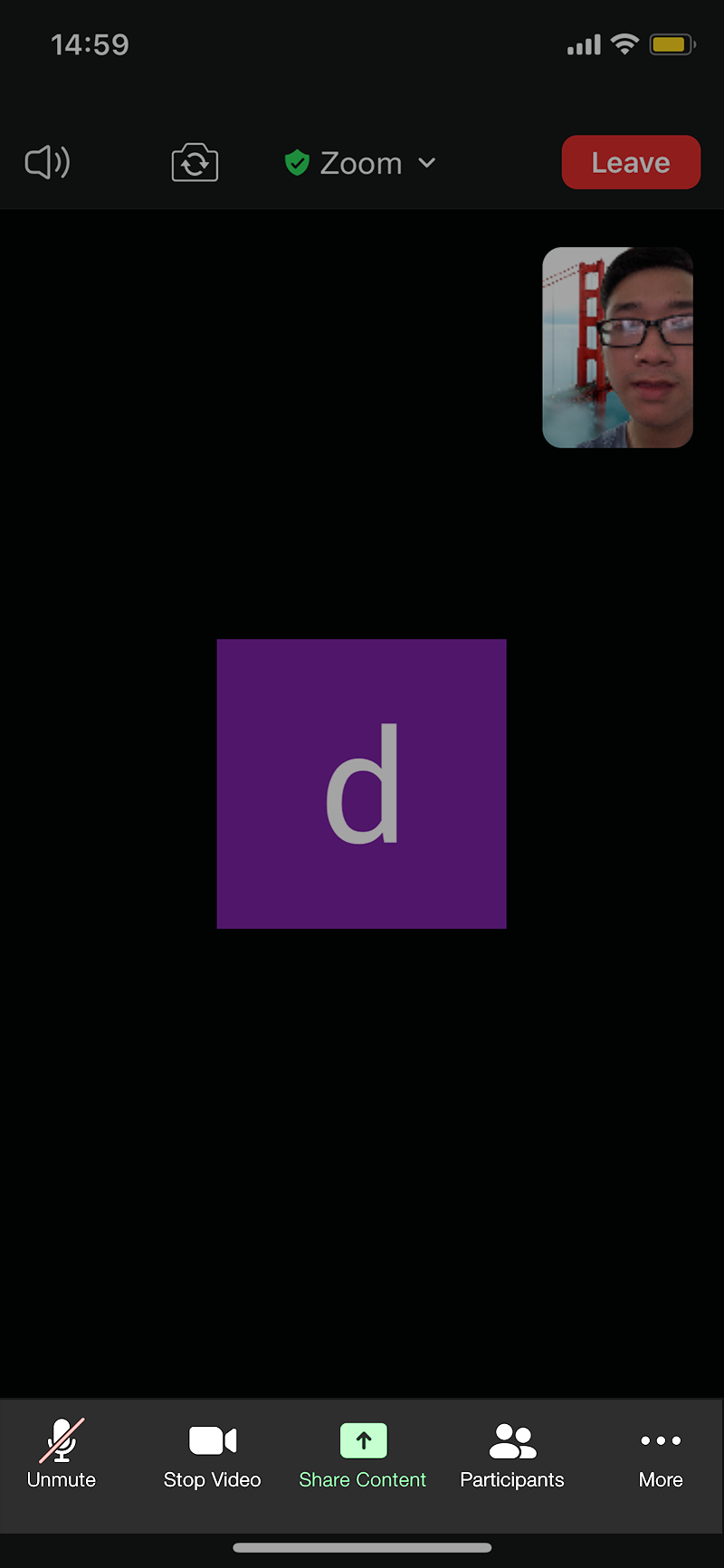
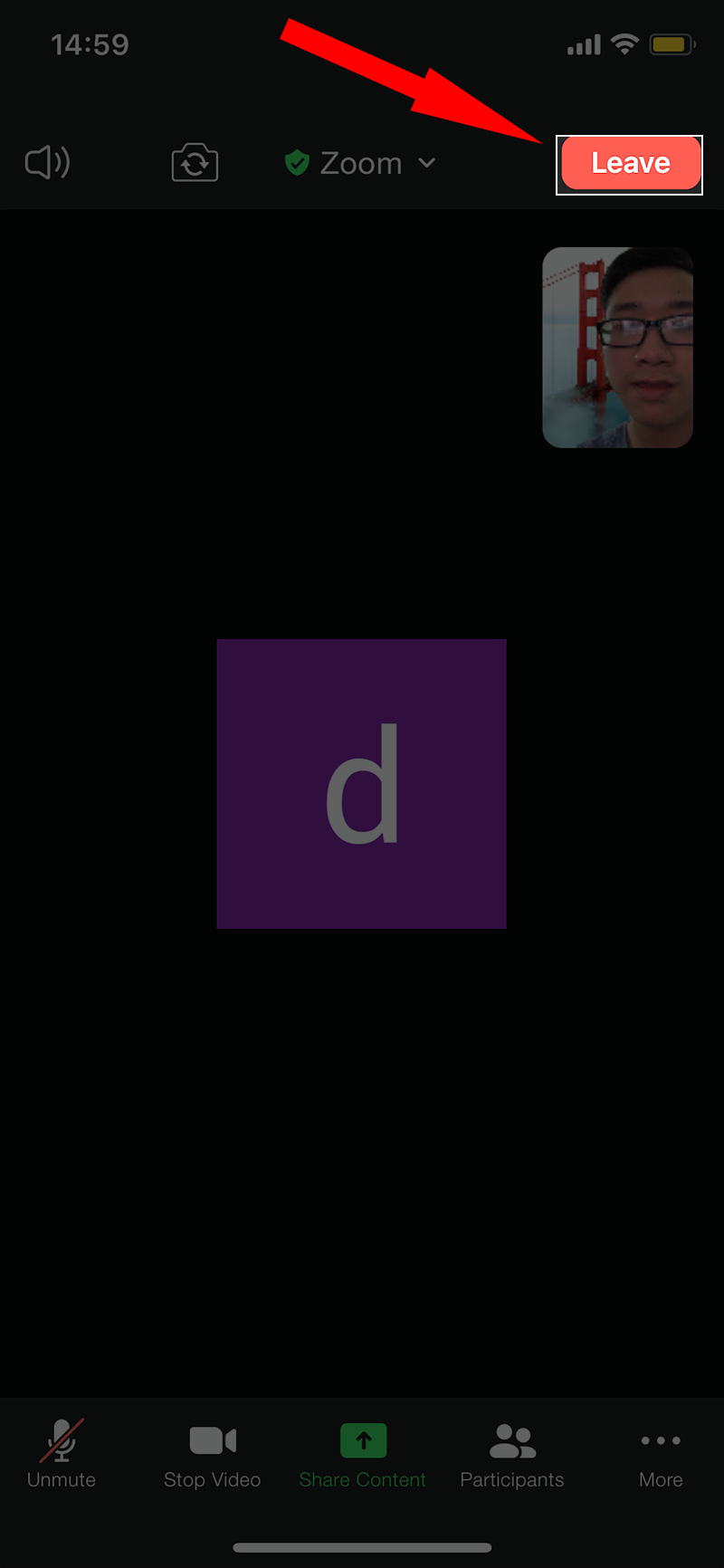
Step 6: To leave the classroom, select Leave in the upper-right corner.
III. How to raise your hand to speak on Zoom
1. Quick guide
- In the Zoom interface, select Other on the screen.
- Click Raise Hand.
- The raised-hand icon appears on screen, and everyone will see your contribution.
2. Detailed guide
Step 1: In the Zoom interface, select Other on the screen.
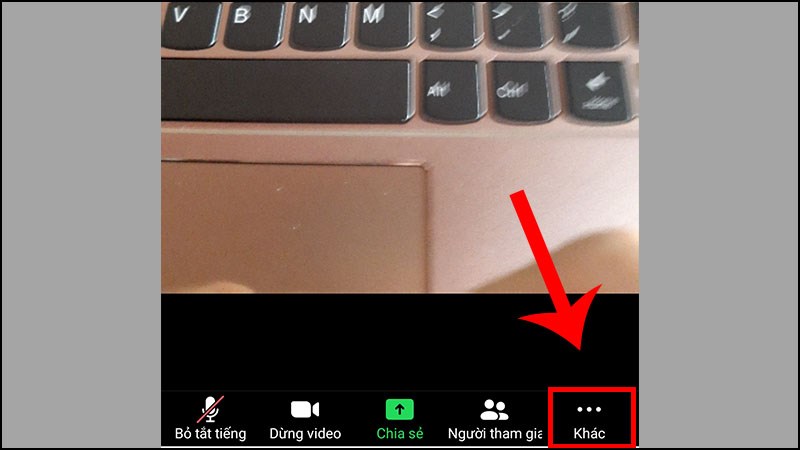
Select Other
Step 2: Click Raise hand.
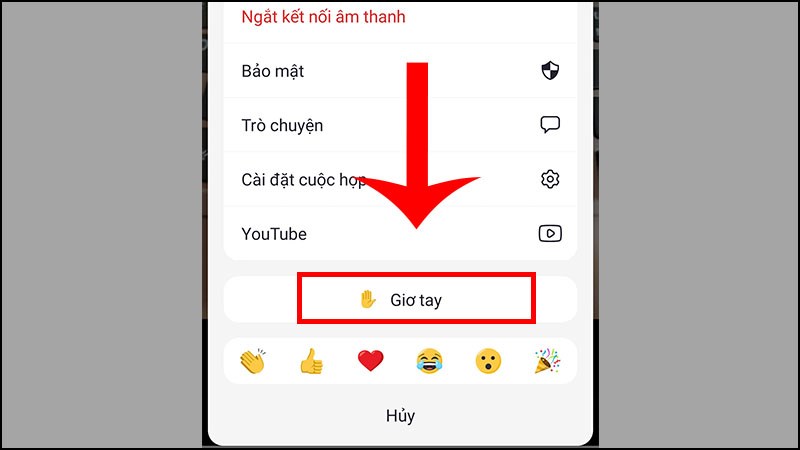
Click Raise Hand
Step 3: The raised-hand icon appears on screen, and everyone will hear your contribution.
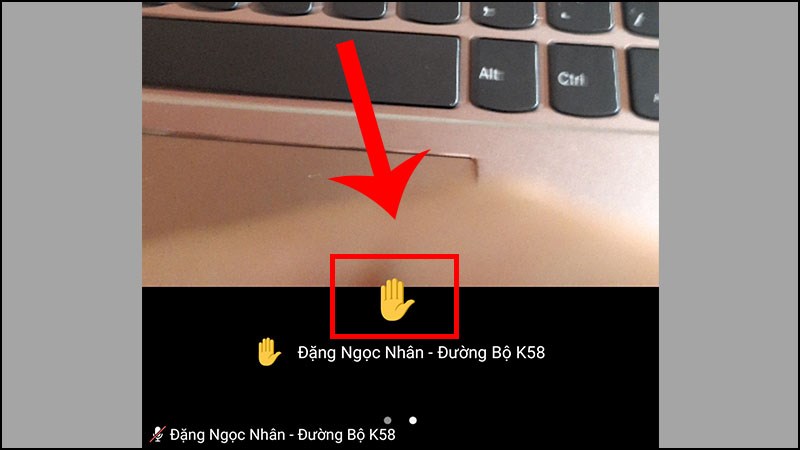
The raised-hand icon is displayed
IV. How to fix common Zoom errors, enable Zoom filters, and use virtual backgrounds
2 Simple Ways to Fix the “Not Eligible to Sign Up for Zoom” Error
What is Zoom error 1132? Simple ways to fix Zoom error 1132
Simple instructions for fixing Zoom's incorrect-password error
What is Zoom's Invalid Meeting ID error? How to fix Invalid Meeting ID
How to change your Zoom virtual background with great style and ease
How to enable and use beauty filters in Zoom
Above is a detailed guide to using Zoom on a phone for students. We hope this article helps you use the software more easily and conveniently for online teaching and learning.
Source: Thế Giới Di Động